Compatibility:
WebSite X5 Evo and Pro
Some elements in the Pages created with WebSite X5 are added automatically by the Program; they may be, for example, links and Anchors to other parts of the website, buttons in the Gallery Object, labels for the Contact Form Object, labels and text for the e-commerce shopping cart, or text that appears in the Map.
Obviously, the text that appears in these elements must be in the correct language for the website and to ensure this happens, you must:
- Open Step 1 - Website Settings > General Information window.
- Specify the first language of the website in the Content Language option.
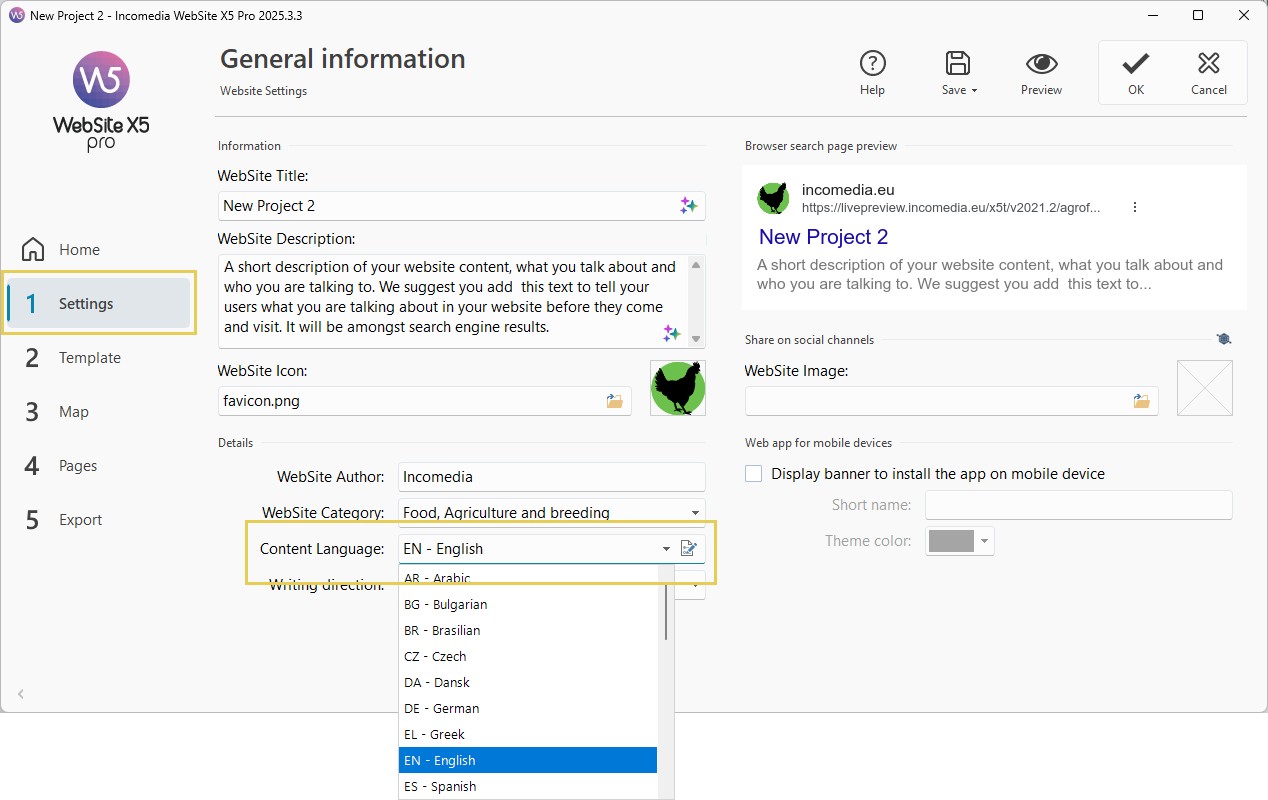
WebSite X5 offers a number of default languages, including English, Italian and German, with the necessary translations. The default translations can be changed, and you can add or import new languages, or remove unnecessary ones. To do this, you can:
- Click on the
button next to the Content Language option.
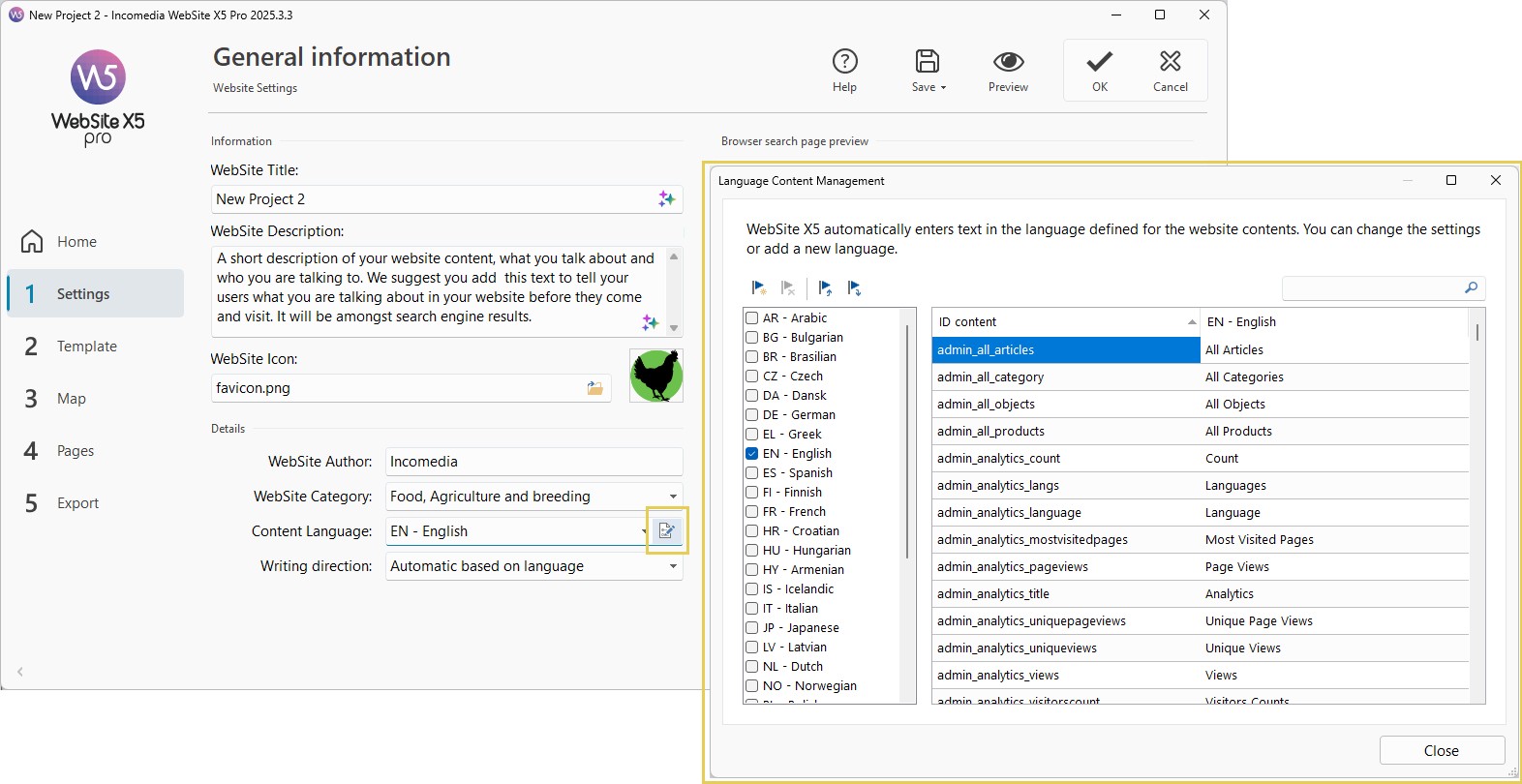
- Use the options presents in the Language Content Management window.
How to change existing automatic text
Examples of text that is added automatically by the Program are the labels on the "Send" button at the bottom of contact forms.
Imagine you have selected "English" as the Content Language, and you want to change the "Send" label:
- In the Language Content Management window, click on "EN - English" to display the text elements in English that are already present in the translation table.
- In the first column of the table, look for the "form_submit" item, which is the label for the button you want to change. Move along the row to the corresponding cell in the English language column. Double-click on the cell to make the cursor appear: delete the word "Send" and type the new one.
- Close the window: your changes will be saved automatically.
How to add a new language
If you want to create a website in a language that is not included in the list of available languages (for example, Korean), to avoid having the automatic text added in English (which is the default language), you must add a new language to the list. With the right language skills, adding a new language is easy:
- In the Language Content Management, click on the
Add a new Language button and type "KO - Korean" in the dialog box that is shown. This new entry will appear at the bottom of the list of available languages.
- Click on "KO - Korean" to display the column for this language in the translation table.
- Type in the translations for each item and then close the window when you have finished: this automatically saves your work.
- Set "KO - Korean" as Content Language in the Website Settings window.
#tip - When creating a new language, it is important to follow the required naming format: ID - LanguageNamewhere:
- the part before the hyphen (ID) must be unique;
- the hyphen is mandatory;
- after the hyphen, the name of the language must be indicated.
How to add a new version of an existing Language
It may happen that, even when using the same language, you need to differentiate some automatic texts. In these cases, you must manage variants of the same language, for example:
- English (United Kingdom) and English (United States);
- Português (Portugal) and Português (Brazil);
- English 1 and English 2, no variation related to the language but automatic texts customized according to the project.
In these cases, it is not possible to duplicate an existing language: you must always create a new one, as already explained in the previous paragraph.
It is always important to follow the required naming format: ID - LanguageName
Referring back to the example given at the beginning, valid names for language variants could be:
- EN-GB - English (United Kingdom)
- EN-US - English (United States)
- PT-PT - Português (Portugal)
- PT-BR - Português (Brazil)
- EN1 - English
- EN2 - English
In this way, the program recognizes the languages as distinct and allows you to manage different automatic texts for each version.
How to export/import a language
If you need to develop a website on two different computers in a language that is not catered for by the Program, you can export the new language created on one of the computers and import it on the other.
- On the first computer, select the new language from the list of available languages and click on the
 Export the selected Language button: a .XML file with the new language will be saved in the specified folder.
 - Move the .XML file to another computer.
- Open the Program and go to the Language Content Management window. Click on the
 Import a new Language button to select the .XML file to import.
#tip - If the imported language is already in the list, it will not be duplicated, but any new items will be added and modified items will be updated.