Compatibility:
WebSite X5 Evo and Pro
Do you want another Page to open when visitors click on a text? Or do you want to use an image or a button to download a document, send an e-mail, or reach a specific point on the Website?
In WebSite X5, you can achieve all these results through Links. You can apply them to texts, images, buttons, and other elements and choose, each time, which action should be performed when the visitor clicks.
Where you can add a link
You can use Links on different types of content. For example:
- Texts: you can turn a word or phrase into a link. This option is available in Objects that let you work on text through an editor, such as the Text, Table, and Title Objects.
- Images: you can make an image clickable and use it, for example, to open a Page or display additional content. In Galleries, you can also assign different links to individual images.
- Buttons: you can use the Button Object to create a call to action that leads to a Page, opens a resource, or starts another action. Alternatively, you can create buttons with the Image Object, taking advantage of the option to set a mouseover effect, or with one of the Optional Objects in the Button category.
- Other Objects: when available, you can also use the Link command to make other elements added to the Pages active.
The position and name of the command may vary slightly depending on the Object you are using, but the general procedure remains the same.
#tip - Navigation Menu. Standard Menu items are automatically linked to Pages according to the structure defined at 'Step 3 - Map'. However, you can assign a custom Link to a Level when you want a different behavior, as in the case of a One Page website.
How to create a link
To create a Link:
- Open the Object you want to work on by double-clicking it or selecting it and clicking
 Edit.
Edit. - If necessary, select the element you want to apply the link to: for example, a word in a text or a specific image in a Gallery.
- Click the Link button or the
 icon available next to the corresponding option.
 - In the Link window, choose the action that should be performed when the visitor clicks.
- Complete the settings required for the selected action.
- Confirm by clicking OK.
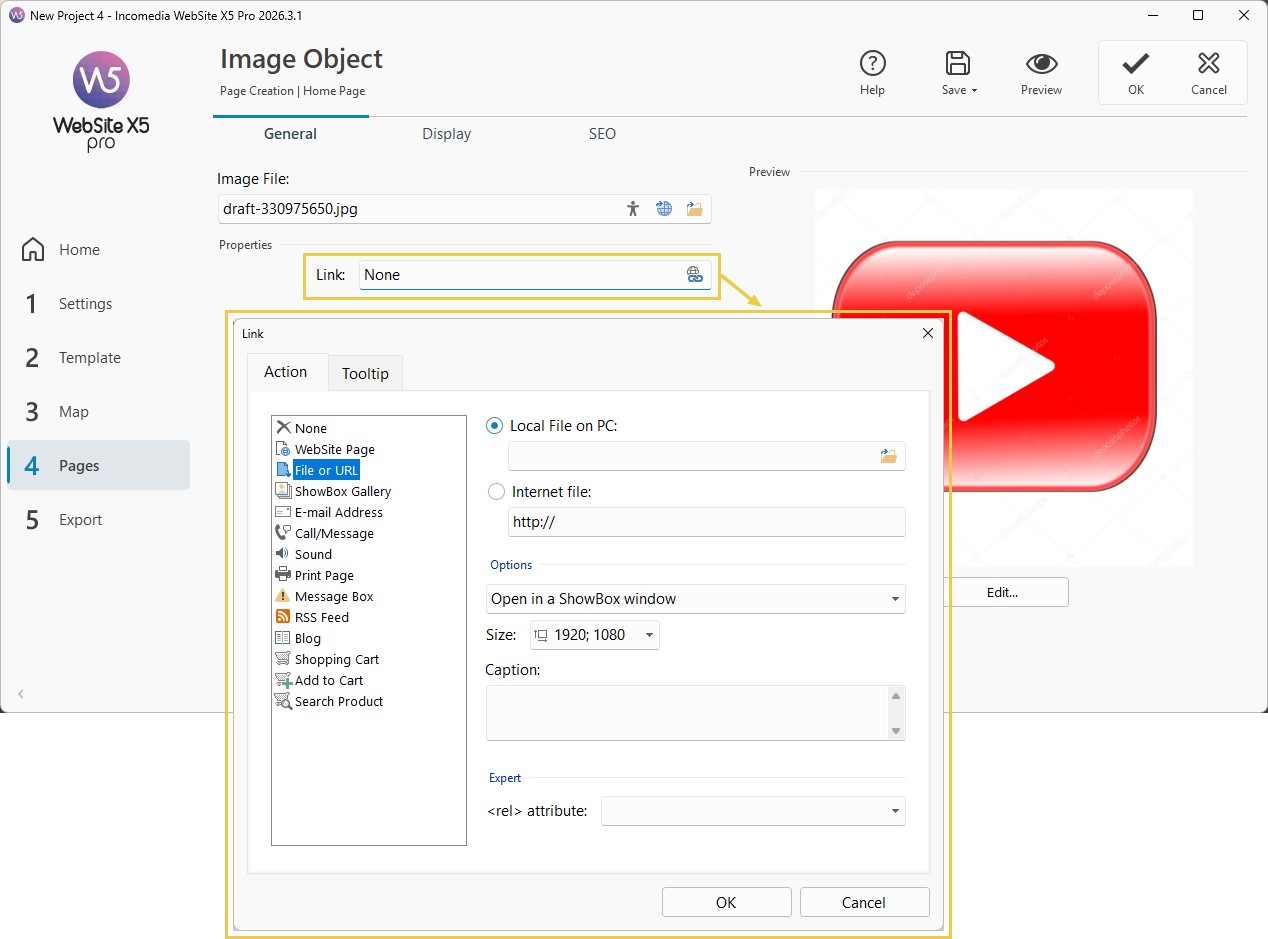
Depending on the result you want to achieve, you can choose different actions.
What do you want to do with the Link?
Open another Page of the Website
You can link a text or another element to one of the Pages included in the Map.
For the complete procedure, see How do you create a text link to another page of the website?
Open an external web page
If you want to take the visitor to another website, in the Link window choose the File or URL action and specify the address of the page to open.
Remember to enter the complete address of the resource.
Display an image gallery
You can use a Link to open a gallery directly in a ShowBox window.
See How do you create a link to an image gallery in ShowBox?
Open or download a document
You can link a text, an image, or a button to a PDF document, a PowerPoint presentation, or another file.
See How do you create a link to a PDF, PowerPoint, or other document?
Prepare an e-mail message
You can create a Link that opens the visitor's e-mail program with a new message ready to be completed.
See How do you create a link to send an e-mail?
Start a call
If the Website is viewed on a compatible device, you can use a Link to let the visitor start a call directly.
See How do you create a link to start a call?
Reach a specific point on a Page
If you want the Link to take the visitor directly to specific content on the same Page or on another Page of the Website, you can use an Anchor.
See Anchors. How do you create links to specific points on a page?
How to customize links
In addition to defining what should happen when the visitor clicks, you can also customize how the Link is presented.
If you are working on a link inserted in a text and want to change its appearance, see How do you change the color of a link?
You can also associate a Tooltip with the Link, that is, a short text displayed when the mouse pointer passes over it, which can help the visitor understand what will happen when they click.
For more information, see How do you set a tooltip on links?
Practical tips
When using Links:
- use text that helps visitors understand where the link will take them or which action will be performed;
- avoid adding unnecessary links;
- check that linked URLs and files are still available;
- use Anchors when you want to make it easier to navigate particularly long Pages;
- check in Preview that all Links work as expected;
- when the action is mainly intended for smartphones, such as a call, also test the result on a mobile device.