Compatibility:
WebSite X5 Evo and Pro
It can be useful to let visitors view a document directly from the website: for example, a PDF catalog, a brochure, a price list, or a presentation.
In WebSite X5, you can create a Link to a file saved on your computer or already available online and choose how it should be opened.
How to create a link to a document
To link a PDF, a PowerPoint presentation, or another file:
- Select the text, image, button, or element you want to use to open the document.
- Click
 Link to open the corresponding window.
 - Select the File or URL action.
- Specify the document to link:
- use Local File if the file is saved on your computer and click
 to browse for it;
 - use Internet File if the document is already online and enter its URL.
- use Local File if the file is saved on your computer and click
- Choose how the linked resource should be displayed.
- Confirm with OK.
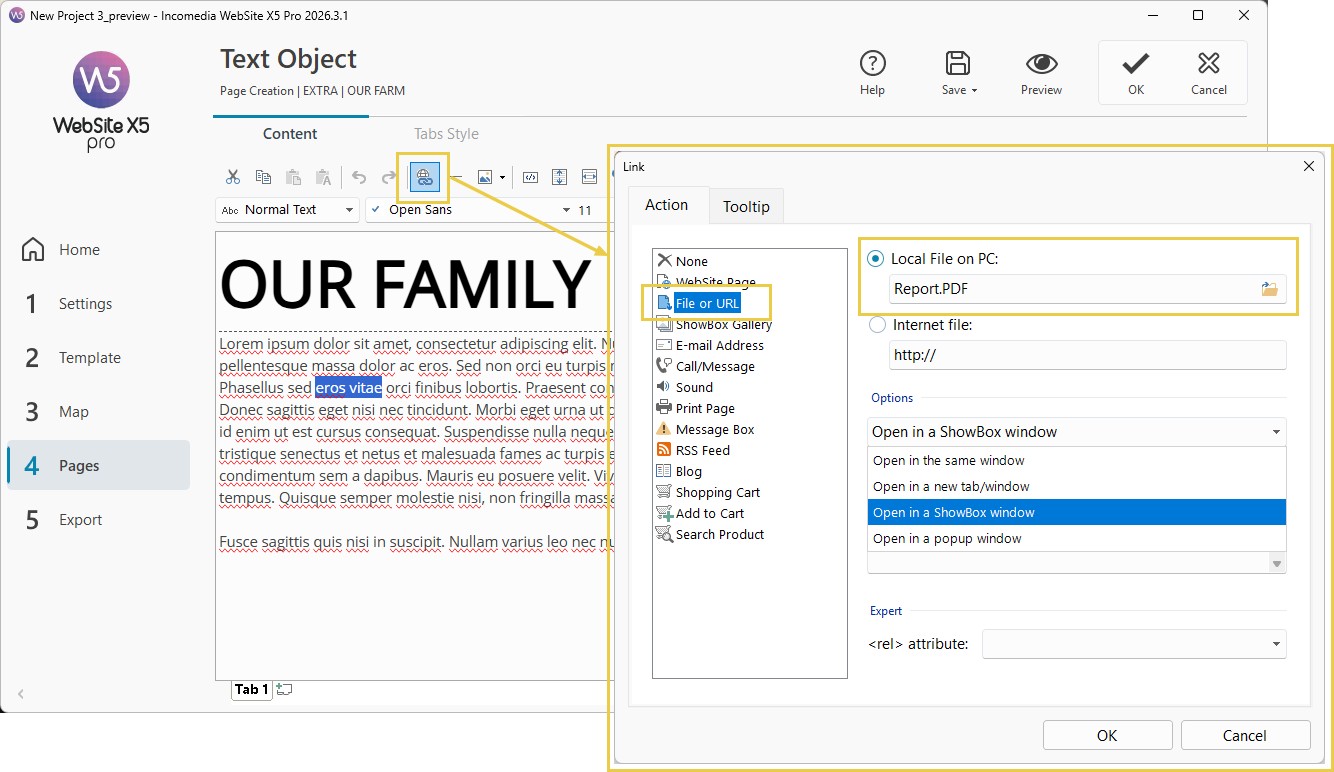
How to choose where to open the document
Depending on the file type and the result you want to achieve, you can choose to open the resource:
- in the same window of the Browser;
- in a new window of the Browser;
- in a ShowBox window;
- in a PopUp window, specifying its size.
With ShowBox, the document is displayed in the foreground while the original Page remains visible in the background. This solution is particularly suitable for images, but it can also be used for some other resources, such as PDF documents.
When using ShowBox, you can also add a caption to be displayed together with the content.
#tip - Flippable PDFs. If you want to present a PDF with an effect similar to a book or magazine, you can use the Flipbook Optional Object.
If you want to allow the file to be downloaded
Creating a Link to a document is mainly used to make the file accessible to the visitor. The actual behavior - display in the Browser or download - may also depend on the file format and the settings of the Browser being used.
If your goal is instead to clearly offer a file for download, you can use the Download Button Optional Object, which is specifically designed for this purpose.
#tip - If you still need to create the Link to start from, see Links. How do you create a link?