Compatibility:
WebSite X5 Pro
Your website can be much more than a simple showcase: it can become, for example, the main sales channel for the products or services you offer, giving you the opportunity to reach a potentially much wider audience than a physical store could attract.
With WebSite X5, creating a complete e-commerce website is an accessible process even without programming skills. By correctly configuring your product catalog, payments, shipping, and order management, you can build a professional, organized, and effective online store.
The essential steps are:
- Build the product catalog
- Define shipping and payment methods
- Set up the order form
- Enable order submission and collection
- Prepare purchase buttons
- Publish online and manage the store
#tip - In the local preview of the website, orders are not actually sent and users are automatically redirected to the order confirmation page. The e-commerce cart works fully only after the website has been published to a server.
How to create an e-commerce website step by step
1. Build the product catalog
The first thing you need to do is create the product catalog for the items you want to sell through your e-commerce website:
- Go to Step 1 - Settings > E-commerce Cart.
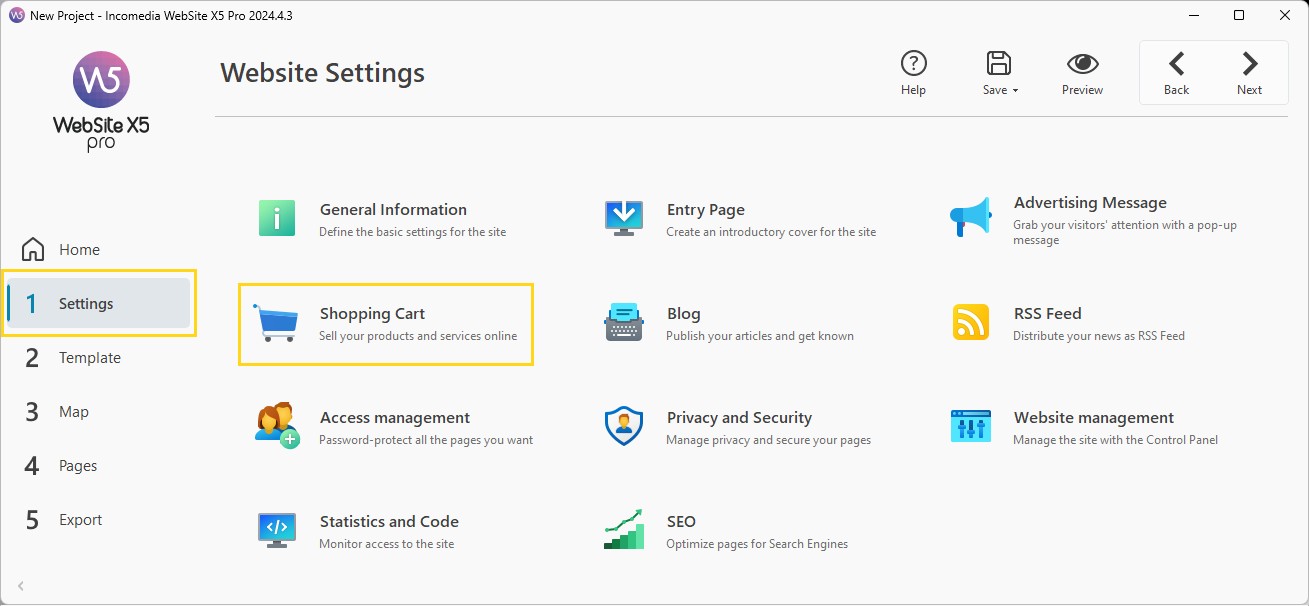
- Create the main categories: click the New Category button to add the categories you need.
- Add products within the categories: select a category and click the New Product
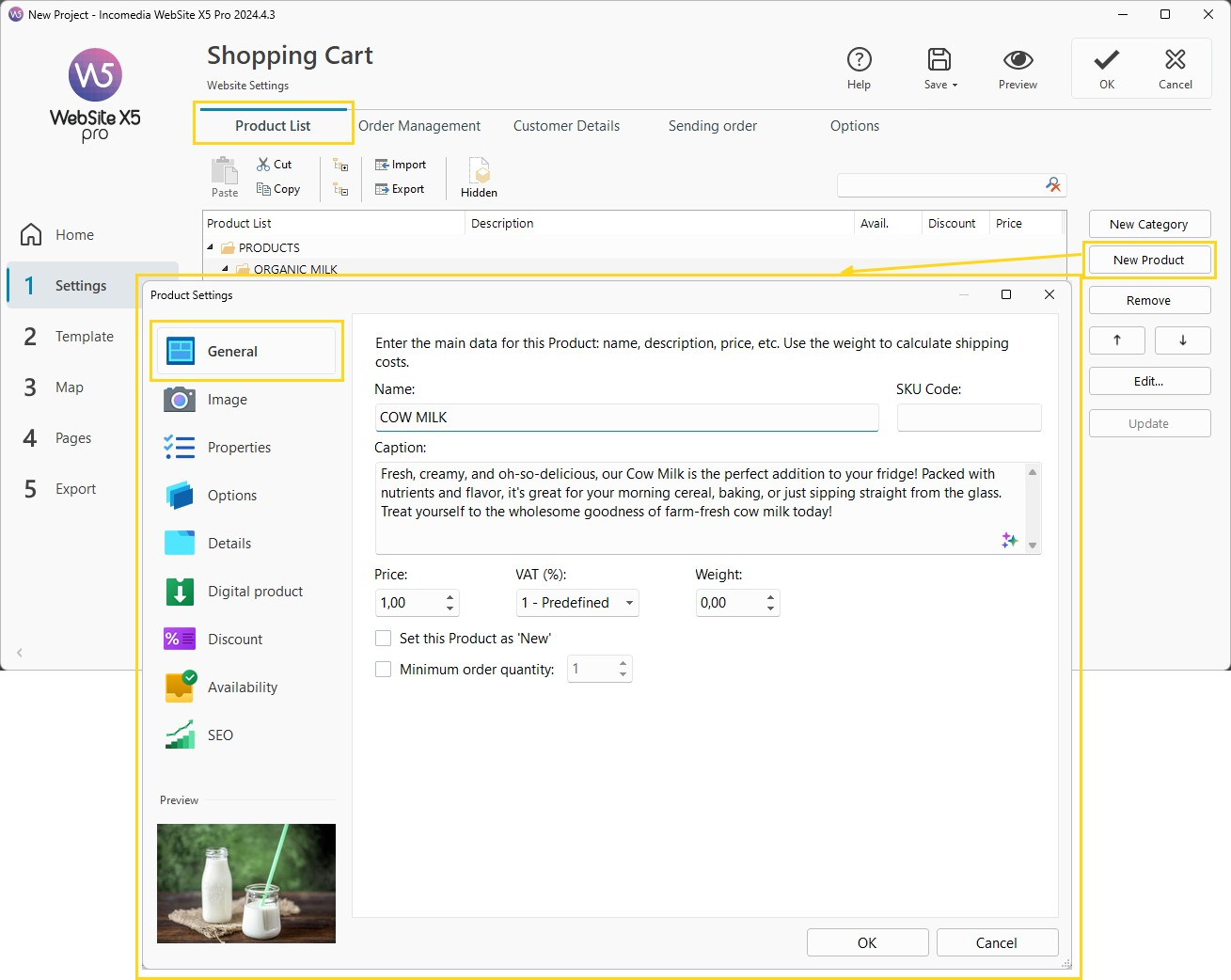
- For each product, use the Product Settings window to enter all essential information such as name, description, images, price, availability, and SEO parameters.
#tip - To quickly improve descriptions and SEO content, you can use MagicText, the integrated AI assistant in WebSite X5 Pro.
#tip - Also see: How do you set up the product catalog? Instead of doing it manually, you can import existing catalogs in CSV or TXT format: see How do you import/export Cart Products?
2. Set up shipping and payment methods
Once the product catalog has been configured, you need to activate the shipping and payment methods you want to make available on your online store.
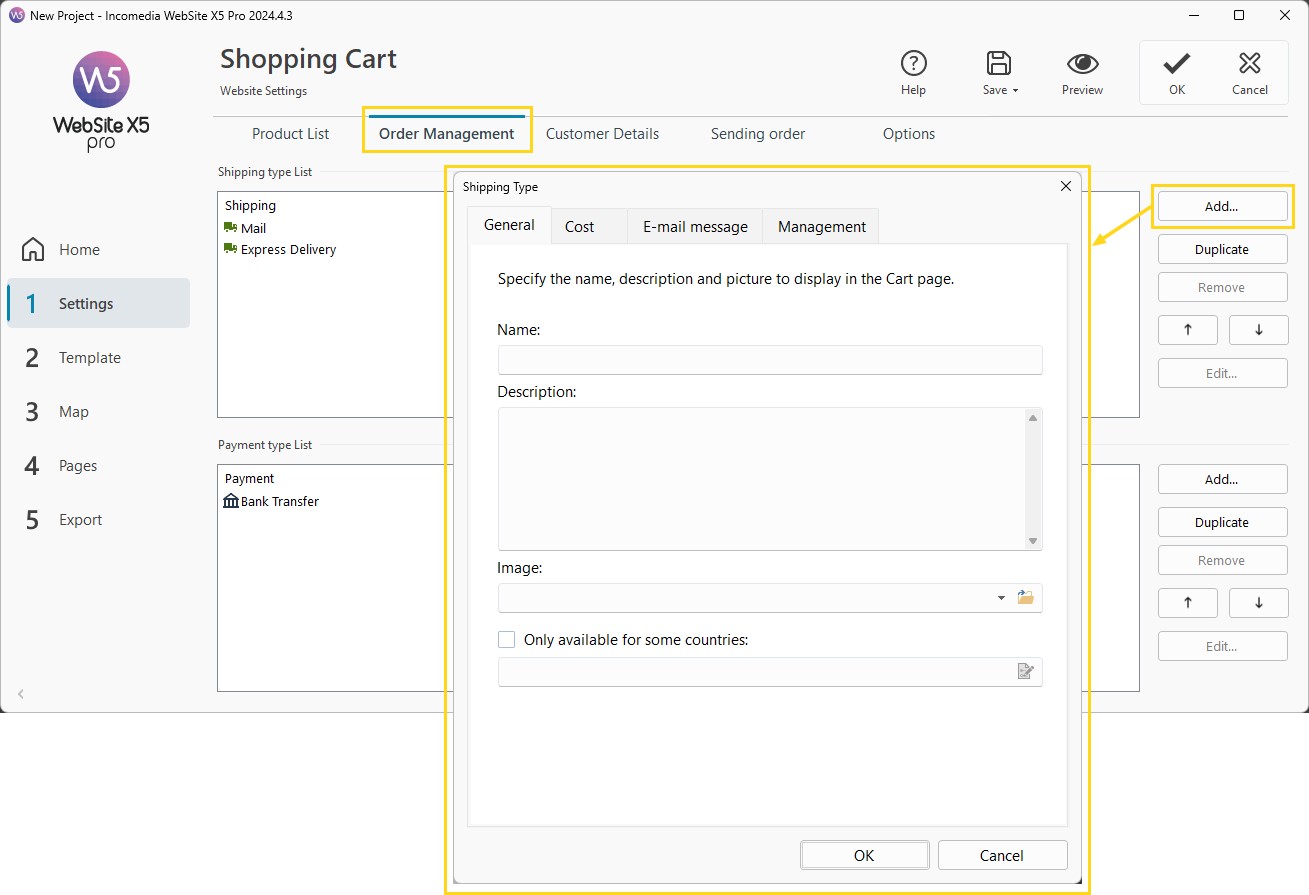
- Go to E-commerce > Order Management.
- The Shipping Methods List table includes the default entries "Mail" and "Express Courier": select the method you want to customize or create a new one by clicking the Add button.
- For each method, use the Shipping Method window to customize costs, geographical areas, and conditions.
#tip - Learn more here: How do you set up active shipping methods for your store?
- Similarly, configure the payment systems:
- PayPal;
- credit card;
- bank transfer;
- cash on delivery;
- other compatible gateways.
#tip - For more information, see: Payment methods. How do you configure the ones available in your store?
3. Set up the order form
Of course, to place a purchase order, customers must complete a form containing the data required for billing and, if necessary, shipping. To create the order form, proceed as follows:
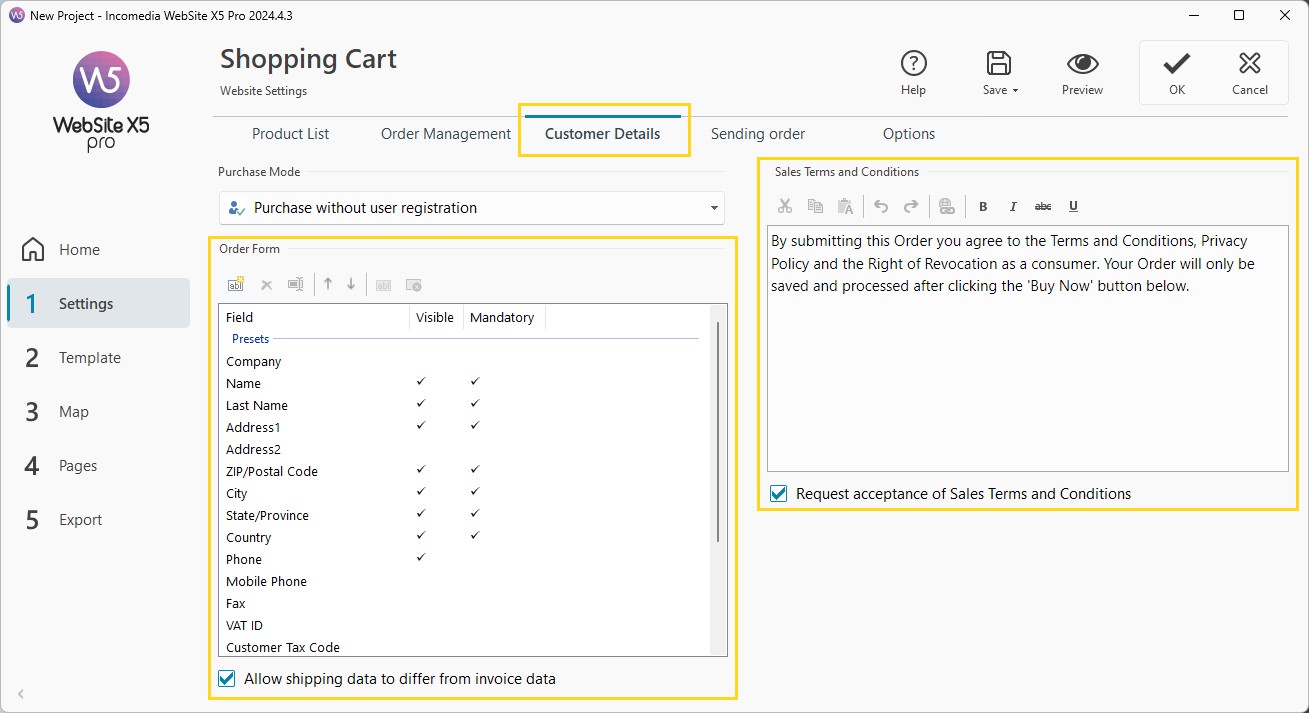
- Go to E-commerce > Customer Data.
- In the Fields List summary table, check the structure of the order form. For each field, decide whether to make it
 "visible" (included in the form) and/or
  "mandatory" (the customer must complete the field to proceed).
 - Enable the Allow Shipping Data Different from Billing Data option to duplicate the necessary fields so customers can specify shipping information different from billing details.
- Using the dedicated editor, create the Sales Conditions Text that customers must accept to complete their order.
4. Enable order sending and collection
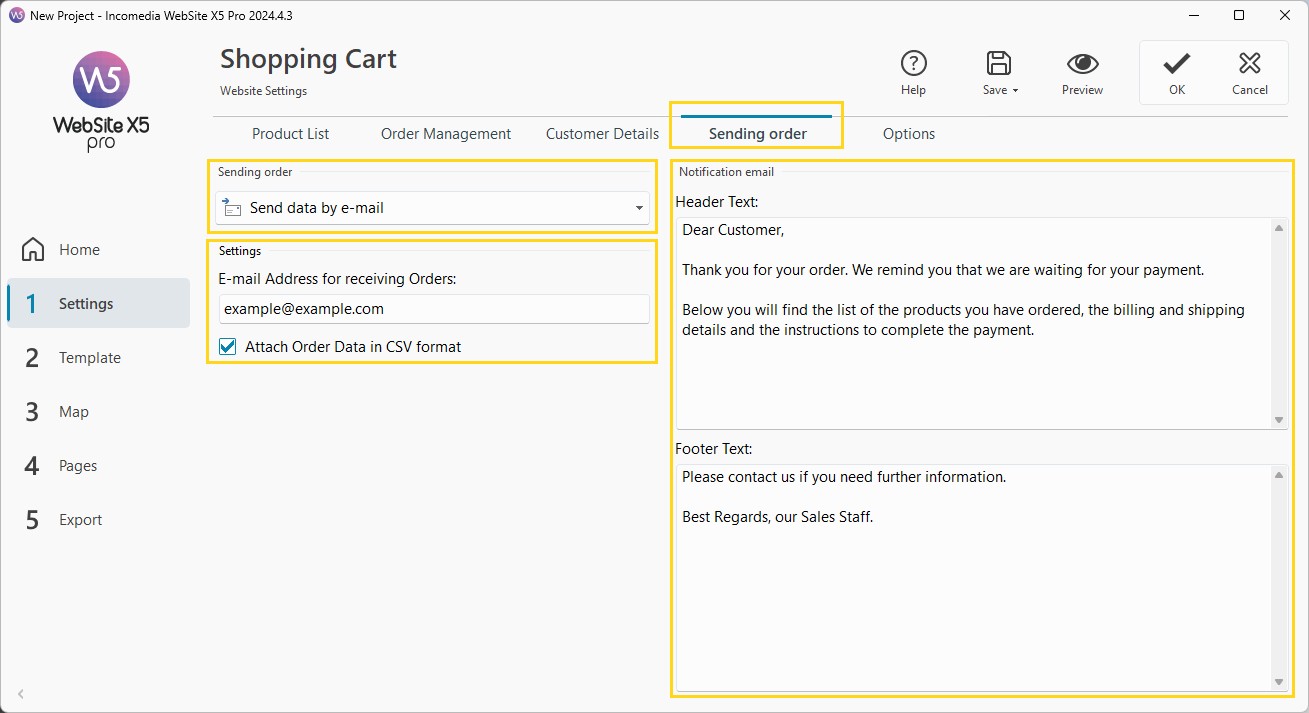
When a customer places an order, the e-commerce cart must send 2 emails: the first is the Order Summary email that you, as the Site Administrator, will receive; the second is the Order Confirmation email sent to the customer.
- Go to E-commerce > Order Sending.
- Select Send data by email and enter the Administrator Email (the email address where you want to receive orders).
- If you want order data included at the end of the summary email, enable the Attach Order Data in .CSV format option. Organized in a .CSV file, your order data can easily be imported into management software.
- Create the Introduction Text and Closing Text that will be used to compose the Order Confirmation Email for the Customer (see How do you define notification email contents?).
tip - Instead of receiving each order individually by email, with the Pro edition you can collect and manage them through an online database. See: How do you set up order collection via database?
5. Showcase products and make them purchasable
Once the e-commerce cart has been created, you need to add the necessary information and links to your website so customers can find the products they are interested in, read their descriptions, and purchase them. To do this, you can:
- Create a page for each product so you can present it in the way you consider most appropriate (with images, text, tables, etc.). In this case, you can create the "Buy" button through the Add to Cart link (see How do you create a "Buy" button?).
- Create pages where products are displayed through dedicated cards built using the Product Catalog Object (see How do you work with the Product Catalog Object?).
- Enable a search engine in your e-commerce store and make it available to your customers so they can search for the products they need (see What is the Product Search page and how is it used?).
- Allow the program to generate dedicated Product Detail Pages and link them as extensions of product cards or through dedicated buttons and/or menu items (see What is the Product Detail Page and how is it used?).
The first method offers a higher level of customization but requires more effort on your part; the other methods, by automating the creation of product cards and Product Detail Pages, allow you to proceed much more quickly.
#tip - To better evaluate the available options, see How can catalog products be presented?
6. Publish your website and manage your store
At this point, you are ready to put your website online complete with its e-commerce cart:
- Go to Step 5 - Export and click the Export the website to the Internet button.
- Choose the Web Hosting Provideryou want to use.
- If you decide to use WebSite X5 Hosting space — perhaps the one included with your software license — you do not need to do anything special: everything is already integrated (see How do you export a website using the hosting service included with WebSite X5?).
- If, instead, you choose another provider, manually enter the server connection parameters (see How do you export a website using a hosting service other than the one included with WebSite X5?).
- Access the Control Panel to:
- manage orders;
- monitor products;
- update availability;
- manage customers.
#tip - For a detailed guide: How do you manage store orders and products through the online Control Panel?
Practical tips
Creating an effective e-commerce website does not only mean correctly configuring technical aspects, but also building a purchasing experience that is simple, reliable, and convincing for your customers.
To achieve better results:
- organize categories and product catalog clearly, so products are easier to find;
- carefully refine descriptions, images, and SEO content to enhance each product and improve its online visibility;
- simplify the purchasing process as much as possible, reducing obstacles during checkout;
- offer multiple payment and shipping methods to adapt to different customer needs;
- carefully verify shipping costs, rules, and geographic areas;
- test the entire order process before publication by simulating real purchases;
- always check navigation on both desktop and smartphone;
- regularly update catalog, availability, and content to keep your store professional and effective over time.
A well-designed e-commerce website does not simply sell products: it builds trust, improves user experience, and supports higher conversion rates.
In summary
Creating an e-commerce website with WebSite X5 means building a complete sales system capable of guiding customers from product discovery through to order confirmation.
By correctly configuring catalog, payments, shipping, and order management, you can create a professional, scalable, and easy-to-manage online store.
With a well-designed setup, your website can become a true online sales channel, effective and accessible on any device.