Compatibility:
WebSite X5 Evo and Pro
A strip that fills the entire width of the Browser window can help you create visual breaks, highlight images and important contents, and give the Page more rhythm.
With WebSite X5, you can achieve this result in two ways, depending on whether the strip consists of a single Object or of multiple contents organized in a Section.
How to extend a single Object
If the strip consists of a single Object, you can extend the Object directly to the edges of the Browser window.
To do this:
- Go to Step 4 - Page Creation and open the page you want to work on.
- Add the Object to the Layout Grid.
- Make sure the Object is not placed next to other Objects and occupies all the available space on the Row.
- Select the Object.
- Click the
 Extend button.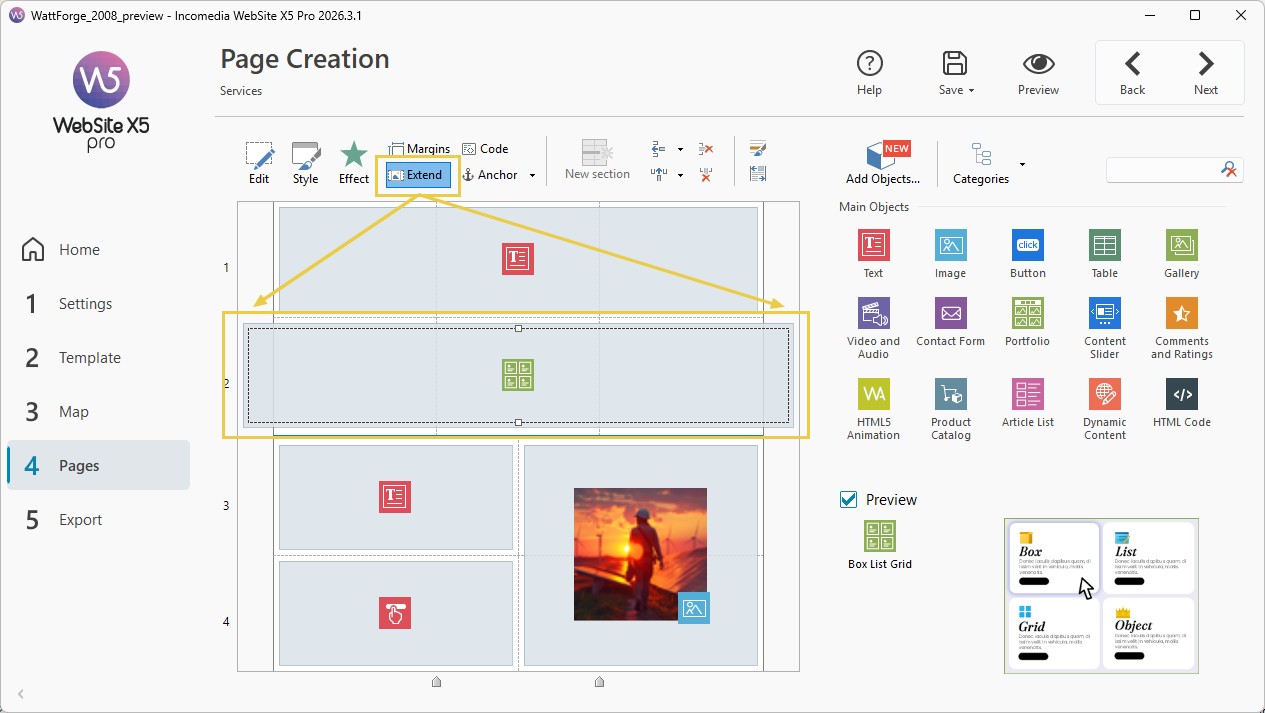
In this case, the Object itself goes beyond the width defined for the Page contents and extends to the edges of the Browser window.
In the Layout Grid, you can easily recognize the Objects for which you have activated the Extend function because they are displayed wider than the Page columns.
To return to the normal layout, select the Object again and click Extend a second time.
How to extend a Section background
If the strip consists of multiple Objects, even distributed over several Rows, you can organize these contents in a Section and make its background fill the entire width of the Browser window.
To do this:
- Go to Step 4 - Page Creation and open the Page you want to work on.
- Organize the Objects in the Section that will form the strip.
- Click the
 Section Style button.
 - Select the Section you want to work on.
- Define the Background you want to apply.
- Click the
 Extend to the width of the Browser window button.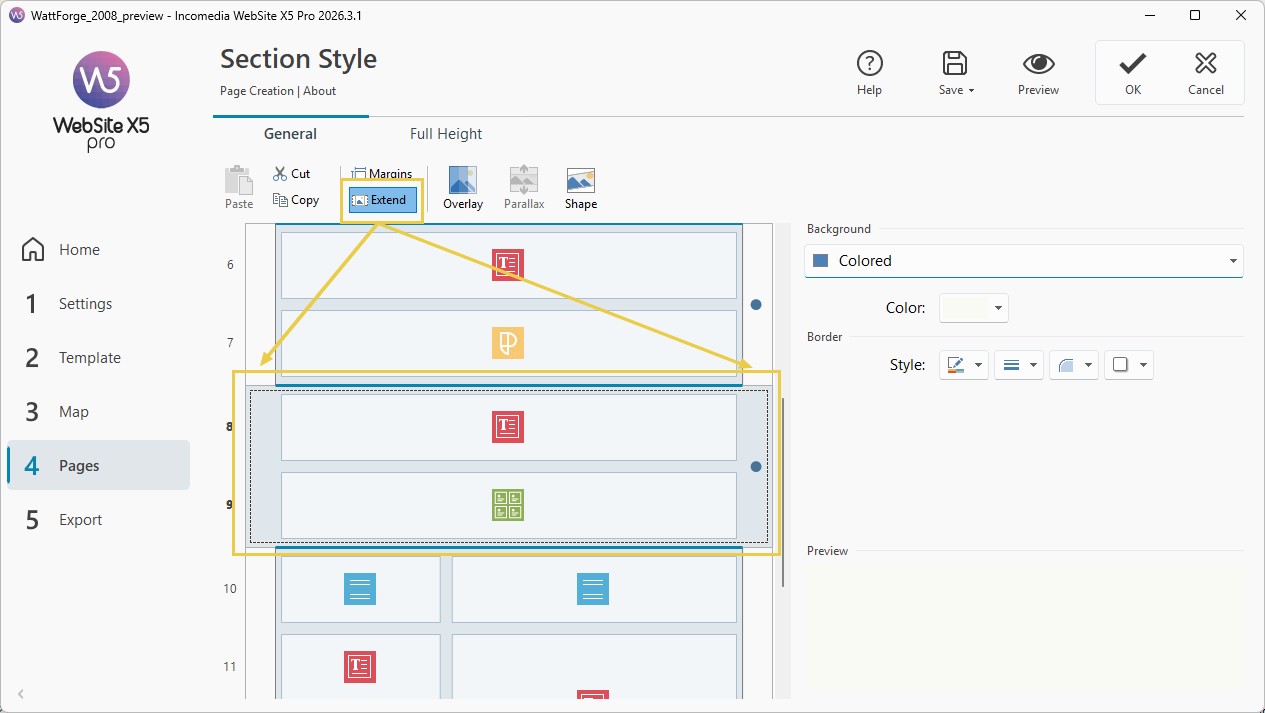
In this case, the Section background is extended to the edges of the Browser window. The Objects it contains continue to be arranged according to the structure and width defined in the Layout Grid.
To disable the effect, select the Section again and click Extend to the width of the Browser window a second time.
#tip - Sections. To learn how to set the background, margins, borders, and other graphic aspects of a Section, see Section Style. How do you create a strip with background, margins, and borders?
Width and height of a strip
A strip can therefore:
- remain within the content width defined by the Template;
- extend to the edges of the Browser window.
Its height, on the other hand, normally depends on the Objects contained in the strip.
#tip - Full Height. If you want a Section to occupy the full height of the Browser window, you can use the Full Height function. For more information, see Full Height. How do you create slide-style page scrolling?