Compatibility:
WebSite X5 Evo and Pro
Do you want to create a page where one section has 2 columns, the next one 3, and another one 4? If the whole page uses a single row and column structure, combining different layouts can become complicated and force you to add many columns just to arrange the Objects correctly.
With Page Sections, you can divide the Layout Grid into several independent areas and assign each one its own structure. This way, you can organize even complex pages while keeping the Grid simpler and easier to read.
In short, a Section is a group made up of one or more Rows. Each Section can have its own number of columns and columns of different widths, without changing the structure of the other Sections on the same Page.
How to create a new Section
You can create a Section directly from the Layout Grid:
- Go to Step 4 - Pages and open the Page you want to work on.
- Select a Cell or an Object in the Row after which you want to start the new Section.
- Click the
 New Section button on the toolbar.
 - A break line appears in the Grid: the Rows above and below the line now belong to two independent Sections.
You can also add a new Section directly from the Grid: when you move the mouse over the line between two Rows, the  command appears, allowing you to create the Section at that exact point.

A Section does not add visible content to the Page: it is used to organize the Grid structure. Visitors therefore do not see the line separating the Sections.
How to use a different number of columns in Sections
The main advantage of Sections is that you can change the number and width of columns without affecting the entire Page.
For example, you can create:
- a first Section with 2 columns;
- a second Section with 3 columns;
- a third Section with 4 columns.
To change the structure of a Section:
- Select a Cell or an Object belonging to the Section you want to work on.
- Use the Grid commands to add or remove columns.
- If necessary, also change the column widths using the dedicated sliders.
The changes are applied only to the selected Section: the other Sections keep their own structure.
This makes it easy, for example, to create a Page with Rows arranged in 2, 3, and 4 columns without having to set up a single 12-column Grid and calculate how much space to assign to the Objects each time.
How to move a Section
If you have already completed part of the Page but decide to change its position, you do not need to move the Objects one by one.
Move the mouse inside the Section and use the contextual commands to:
- move the Section above the previous one;
- move the Section below the next one.
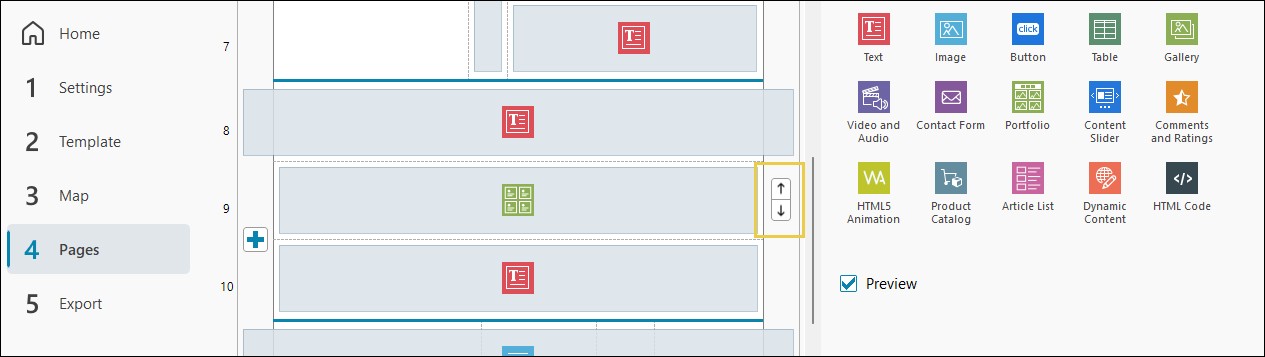
The entire Section is moved, while preserving the arrangement of the Objects inside it.
This option is particularly useful on long Pages, where a Section may correspond to an entire block of contents that you want to reposition.
How to delete a Section
If you no longer need a division, you can delete the Section and merge the two parts of the Grid.
- Move the mouse over the line separating the two Sections.
- Click the
 Delete Section command.
 - The two Sections are merged into a single structure.
If the Sections use a different number or width of columns, WebSite X5 adapts the structure while trying to preserve the original layout of the Objects. In some cases, however, you may need to check and rearrange their position.
If you delete a Row that is the only one in a Section, the Section is deleted together with the Row.
How to copy or reuse a Section
If you have created a block of contents that you want to reuse, you can copy the entire Section instead of recreating it Object by Object.
- Open the context menu by right-clicking a Cell or an Object in the Section.
- Use the Cut or Copy commands for the Section.
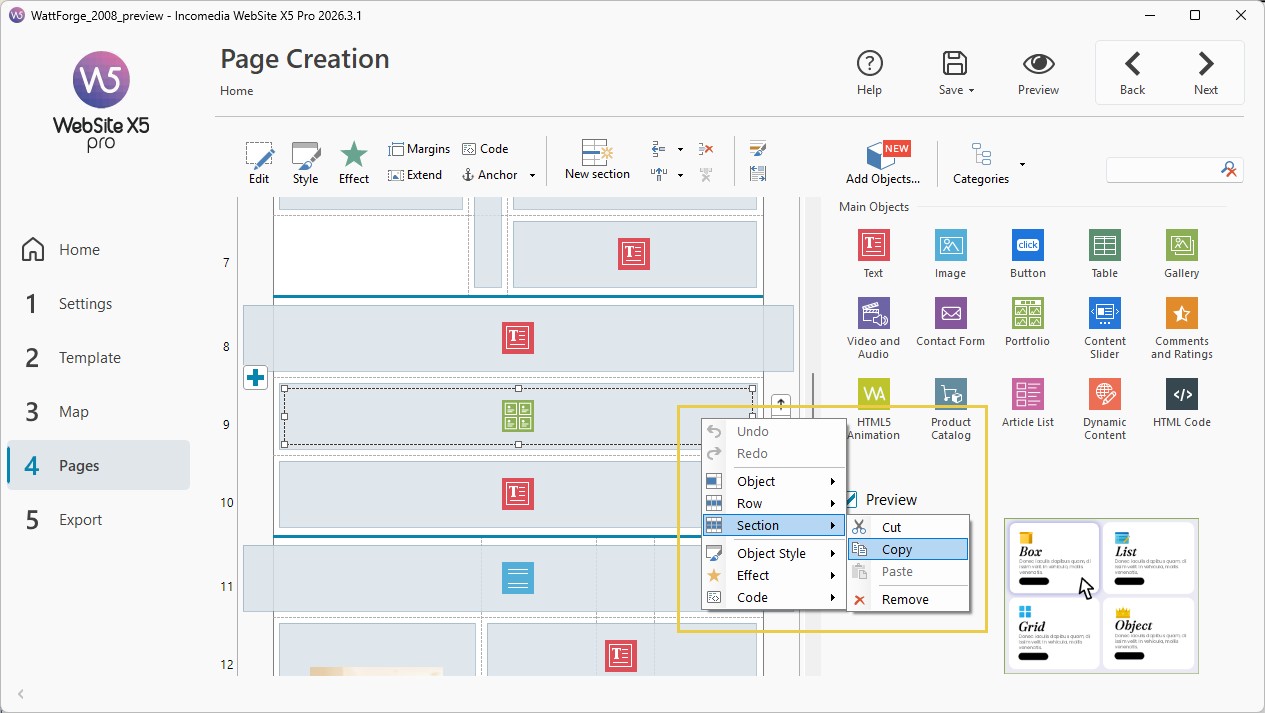
- Move to the point on the same Page, or on another Page, where you want to reuse it.
- Use the Paste command for the Section.
The Section is added while preserving the arrangement of the Objects and its row and column structure.
You can use the same method with the commands for copying and pasting a single Row.
If the Row you want to copy contains an Object spanning multiple Rows, the Row copy command is not available.
#tip - Undo and Redo. If you accidentally create, delete, move, or paste a Section while working on the Grid, you can use Undo (CTRL+Z) to go back and Redo (CTRL+Y) to reapply the operations you have undone. WebSite X5 keeps the change history as long as you continue working in the same window. If you open a different window, the history is cleared.
What to do if you cannot create a new Section
A new Section can only be inserted at a point where the Grid can actually be divided.
If an Object occupies Cells belonging to multiple Rows and crosses the point where you want to create the Section, WebSite X5 cannot divide the structure.
In this case:
- check which Objects occupy multiple Rows;
- change their position or size in the Grid;
- try inserting the New Section again.
This way, each Object remains entirely contained within a single Section.
#tip - Page Sections and Row Breaks are not the same thing. Sections divide the Grid structure and allow you to use independent column configurations. Row Breaks, on the other hand, are used to control how Objects are arranged in the different views of a Responsive website. For more information, see Responsive Design. How do you use Row Breaks to organize Objects?
How to customize the appearance of Sections
Creating Sections is primarily useful for organizing the Page structure. Once the layout has been defined, you can also choose to graphically customize one or more Sections, for example by applying a background or creating a visually distinct strip.
To do this, use the  Section Style command.
You can also graphically link multiple adjacent Sections: this way, they will continue to have independent column structures, but to visitors they can appear as a single continuous block.
For more information, see Section Style. How do you create strips with backgrounds, margins, and borders?
Practical tips
- Create a new Section when part of the Page requires a different column structure from the previous one.
- Use Sections also to better organize very long Pages: separate blocks are easier to identify and move within the Grid.
- Avoid creating Sections when there is no real need: if multiple Rows need to use the same structure, they can remain within the same Section.
- Before deleting a Section whose structure is very different from the adjacent one, check the layout: merging them may require you to reposition the Objects afterwards.